



SFS2X Docs / DevelopmentBasics / connection-phase
» The connection phase
A connection to SFS2X is performed in two steps.
- A physical TCP connection is opened to the server.
- An "handshake" is performed between client and server exchanging a certain number of parameters.
During the handshake the server verifies that the client API version is supported and sends back a number of settings that the client stores locally.
The following code snippet is derived from the Connector example available in most examples packages for the supported languages. Please note that client API setup is a mandatory step before proceeding.
	public class Connector : MonoBehaviour
	{
		public Button button;
		private SmartFox sfs;

		//----------------------------------------------------------
		// Unity callback methods
		//----------------------------------------------------------

		void Start()
		{
			// Add click listener to UI button
			button.onClick.AddListener(OnButtonClick);
		}

		void Update()
		{
			// As Unity is not thread safe, we process the queued up callbacks on every frame
			if (sfs != null)
				sfs.ProcessEvents();
		}

		void OnApplicationQuit()
		{
			// Always disconnect before quitting
			if (sfs != null && sfs.IsConnected)
				sfs.Disconnect ();
		}

		//----------------------------------------------------------
		// Public methods for UI
		//----------------------------------------------------------

		public void OnButtonClick()
		{
			// Disable button
			button.interactable = false;

			Debug.Log("Now connecting...");

			// Initialize SFS2X client
			sfs = new SmartFox();

			// Add event listeners
			sfs.AddEventListener(SFSEvent.CONNECTION, OnConnection);
			sfs.AddEventListener(SFSEvent.CONNECTION_LOST, OnConnectionLost);

			// Set connection parameters
			ConfigData cfg = new ConfigData();
			cfg.Host = "127.0.0.1";
			cfg.Port = 9933;

			// Connect to SFS2X
			sfs.Connect(cfg);
		}

		//----------------------------------------------------------
		// SmartFoxServer event listeners
		//----------------------------------------------------------

		private void OnConnection(BaseEvent evt)
		{
			if ((bool)evt.Params["success"])
			{
				Debug.Log("Connection established successfully");
				Debug.Log("SFS2X API version: " + sfs.Version);
			}
			else
			{
				Debug.LogError("Connection failed; is the server running at all?");

				// Remove SFS2X listeners and re-enable button
				reset();
			}
		}

		private void OnConnectionLost(BaseEvent evt)
		{
			Debug.LogWarning("Connection was lost; reason is: " + (string)evt.Params["reason"]);

			// Remove SFS2X listeners and re-enable button
			reset();
		}

		//----------------------------------------------------------
		// Private helper methods
		//----------------------------------------------------------

		private void reset()
		{
			// Remove SFS2X listeners
			sfs.RemoveEventListener(SFSEvent.CONNECTION, OnConnection);
			sfs.RemoveEventListener(SFSEvent.CONNECTION_LOST, OnConnectionLost);

			sfs = null;

			// Enable button
			button.interactable = true;
		}
	}
	//----------------------------------------------------------
	// Page load listener
	//----------------------------------------------------------
	window.onload = function()
	{
		// Add click listener to connect button
		document.getElementById("connectBt").addEventListener("click", onButtonClick);
	};

	//----------------------------------------------------------
	// Public methods for UI
	//----------------------------------------------------------

	function onButtonClick()
	{
		// Disable button
		document.getElementById("connectBt").disabled = true;

		console.log("Now connecting...");

		// Set connection parameters
		var config = {};
		config.host = "127.0.0.1"
		config.port = 8080;

		// Initialize SFS2X client
		sfs = new SFS2X.SmartFox(config);

		// Add event listeners
		sfs.addEventListener(SFS2X.SFSEvent.CONNECTION, onConnection, this);
		sfs.addEventListener(SFS2X.SFSEvent.CONNECTION_LOST, onConnectionLost, this);

		// Connect to SFS2X
		sfs.connect();
	}

	//----------------------------------------------------------
	// SmartFoxServer event listeners
	//----------------------------------------------------------

	function onConnection(evt)
	{
		if (evt.success)
		{
			console.log("Connection established successfully");
			console.log("SFS2X API version: " + sfs.version);
		}
		else
		{
			console.error("Connection failed; is the server running at all?");

			// Remove SFS2X listeners and re-enable button
			reset();
		}
	}

	function onConnectionLost(evt)
	{
		console.warn("Connection was lost; reason is: " + evt.reason);

		// Remove SFS2X listeners and re-enable button
		reset();
	}

	//----------------------------------------------------------
	// Private helper methods
	//----------------------------------------------------------

	function reset()
	{
		// Remove SFS2X listeners
		sfs.removeEventListener(SFS2X.SFSEvent.CONNECTION, onConnection);
		sfs.removeEventListener(SFS2X.SFSEvent.CONNECTION_LOST, onConnectionLost);

		sfs = null;

		// Enable button
		document.getElementById("connectBt").disabled = false;
	}
	public class Connector extends Sprite
	{
	    private var sfs:SmartFox

	    //----------------------------------------------------------
		// Class constructor
		//----------------------------------------------------------

	    public function Connector()
	    {
	       // Add click listener to UI button
		   bt_connect.addEventListener(MouseEvent.CLICK, onButtonClick);
	    }

	    //----------------------------------------------------------
		// Public methods for UI
		//----------------------------------------------------------

	    public function onButtonClick(evt:Event):void
	    {
		    // Disable button
			bt_connect.enabled = false;

			trace("Now connecting...");

			// Initialize SFS2X client
			sfs = new SmartFox();

			// Add event listeners
			sfs.addEventListener(SFSEvent.CONNECTION, onConnection);
	        sfs.addEventListener(SFSEvent.CONNECTION_LOST, onConnectionLost);

			// Set connection parameters
			var cfg:ConfigData = new ConfigData();
			cfg.host = "127.0.0.1";
			cfg.port = 9933;

			// Connect to SFS2X
			sfs.connectWithConfig(cfg);
	    }

	    //----------------------------------------------------------
		// SmartFoxServer event listeners
		//----------------------------------------------------------

	    private function onConnection(evt:SFSEvent):void
	    {
	        if (evt.params.success)
	        {
	        	trace("Connection established successfully");
				trace("SFS2X API version: " + sfs.version);
	        }
	        else
	        {
	            trace("Connection failed; is the server running at all?");

				// Remove SFS2X listeners and re-enable button
				reset();
	        }
	    }

	    private function onConnectionLost(evt:SFSEvent):void
	    {
		    trace("Connection was lost; reason is: " + evt.params.reason);

			// Remove SFS2X listeners and re-enable button
			reset();
	    }

		//----------------------------------------------------------
		// Private helper methods
		//----------------------------------------------------------

		private function reset():void
		{
			// Remove SFS2X listeners
			sfs.removeEventListener(SFSEvent.CONNECTION, onConnection);
			sfs.removeEventListener(SFSEvent.CONNECTION_LOST, onConnectionLost);

			sfs = null;

			// Enable button
			bt_connect.enabled = true;
		}
	}
As soon as the "connect" button is clicked by the user, the SmartFox object is created: this is the main API class. We then proceed by registering the server events that we want to listen for using the SFSEvent class.
The next step is to create a configuration object containing the details of our connection, and pass it to the connect method (this is slightly different in JavaScript, where the configuration object is passed to the SmartFox class constructor directly).
Finally, one of the two connection listeners is called by the API, signaling a successful or failed connection to the server. For more information and additional details, please check the Connector tutorial for your platform of choice (Unity, HTML5, iOS, Android, Flash).
» What to do after the connection is established?
Starting a connection with the server ensures that the client is able to "speak" the SFS2X protocol, but at this point the client is not recognized in the system as a real user. There is still one mandatory step to take before the client can start to freely interact with the server and the other users: the login.
The login phase promotes the connected client to a true user and joins him in one of the available Zones. But before we move on with this second phase there are still a few things about the connection that we need to examine.
» What could go wrong?
In a local environment it is very unlikely that any problem will arise and you should be able to connect in a snap, however in a production server with "real clients" connecting over the internet, a few issues could show up.
Typically you might find users complaining about a connection failure for one of the following reasons.
- Firewall issues: the client is behind a firewall that doesn't allow connections on the default server port (TCP 9933). If the client is running a local firewall he can be advised to give permissions to the SFS2X port. On the other hand if the client is behind a corporate firewall this can be solved in a different way using a BlueBox connection (more on this later).
- Proxy issues: a Proxy server might stand between the client and SFS2X making it impossible to establish a direct socket connection. Again this is more typical of corporate networks and the BlueBox will come to rescue here too.
- Flash Player or Unity Player crossdomain policy issues: older browser-based plugins such as Flash and Unity webplayer require special permissions for accessing resources outside of their domain. For this reason you will probably need to configure a crossdomain policy file that allows socket connections to SFS2X.
You can find other information on how to troubleshoot client connection failures in this guide.
» The BlueBox
The BlueBox technology offers an high performance HTTP tunnelling engine that allows users behind proxies and other restricted network conditions to enjoy multiplayer applications and games at full speed.
You can read all the informations about the BlueBox in this dedicated document.
» The Highly Resilient Connection (HRC) system
HRC is a low-level mechanism that allows to resume an abrupt disconnection in a completely transparent way for the developer. When the HRC is turned on in your Zone, the client API will detect unexpected disconnections and attempt to reconnect to the server within a certain amount of time that is configured at the Zone level.
NOTE: HRC is not available for HTML5/WebGL clients.
The whole process happens behind the scenes and the developer is notified with different events.
- CONNECTION_RETRY: this is dispatched when the API has detected an abrupt loss of connection and the reconnection to the server is carried on.
- CONNECTION_RESUME: this event is notified when the reconnection is successful. In case the reconnection fails a SFSEvent.CONNECTION_LOST event will be sent instead.
On the server side an extension developer can handle this situation in the same way, by listening to the SFSEventType.USER_RECONNECTION_TRY and SFSEventType.USER_RECONNECTION_SUCCESS events.
In order to turn on this feature you will need to configure the User reconnection timeframe parameter in the General tab of the Zone Configurator module from the AdminTool (highlighted in the following image).
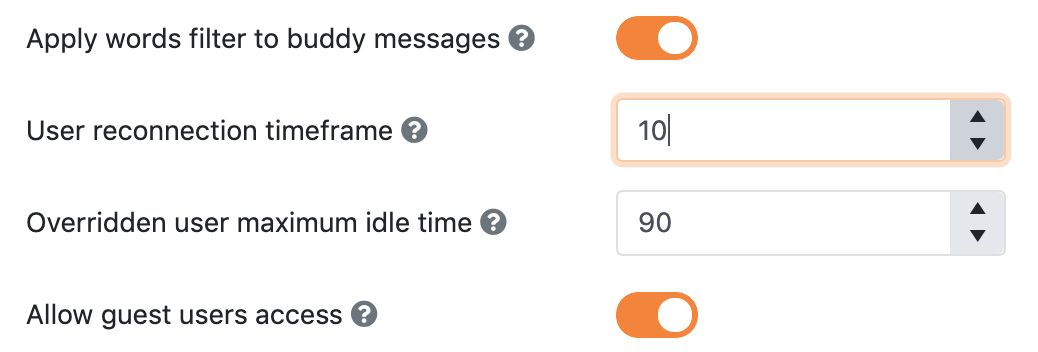
The value is expressed in number of seconds and any values greater than zero will activate the system. Common settings range between 30 to 60 seconds depending on your application requirements and how susceptible is your server logic to waiting for a missing player.
In order to test the Reconnection function you can simulate a sudden disconnection by invoking the client side API method killConnection() exposed by the main SmartFox class.
NOTE
Do not attempt to test the reconnection system by pulling the ethernet cable or shutting down the WIFI connection. Both operations will not terminate your current socket connections and therefore the disconnection event will never be triggered.
For a more detailed overview of the HRC+ system, please read here.